

Copilot makes identifying mis-configurations in SharePoint much faster and easier to see. It honors existing permissions via Microsoft Graph: if a user can access content, Copilot can summarize. That means any accidental read access becomes dramatically easier to discover.
The issue is three fold:
- Sub-folders in Document libraries do not respect SharePoint site permissions. Case: If a folder/file in a SharePoint without guest users unintentionally has guest a guest user added to it (explicit permission add), then the folder/file permissions supersede the SharePoint group level permissions. eg no inheritance.
- Hub sites can unintentionally add guest/visitor access. If a Site is added to a hub, it could receive visitor/guest view-only permissions
- Copying folders and files from sites with open permissions (global read) to restrictive permissions (no guest/visitor access) does not remove the permissions by default causing permissions bloat which and be exploited easily by Copilot.
broken inheritance at the library, folder, and file level
SharePoint allows unique permissions at the list/library, folder, and item levels. When inheritance is broken, those unique ACLs trump the site’s groups. A single “rogue” folder or file can become readable to people who have no access to the parent site.
For instance, an HR folder containing sensitive employee information may inadvertently become accessible to individuals outside the intended audience due to unique permission settings, allowing confidential data to be viewed by unauthorized users.
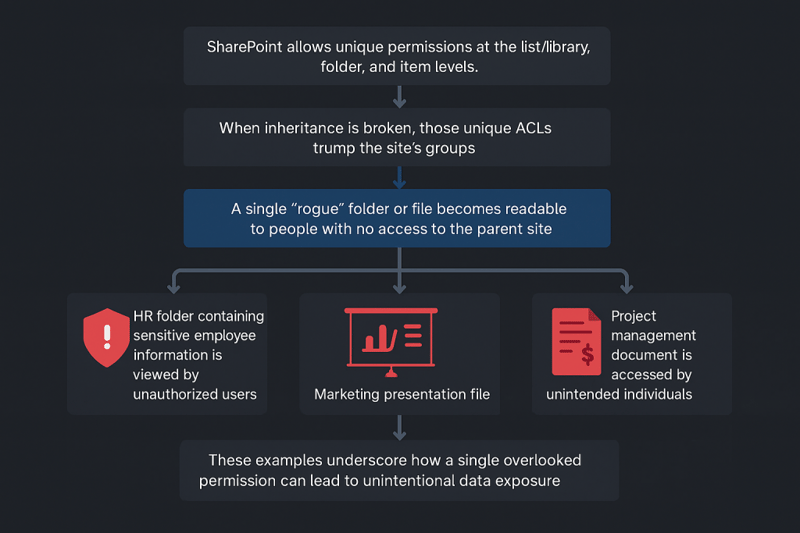
In another case, a marketing team’s strategic presentation might be shared with external partners, but a single file within the library could be mistakenly exposed to the entire organization because its permissions override the parent settings.
Even project management documents, such as timelines or budgets, can fall prey to permission misconfigurations, resulting in team members or outsiders accessing files meant to remain restricted. These examples underscore how a single overlooked permission can lead to unintentional data exposure, especially when leveraged by tools like Copilot that make discovering accessible files faster and easier than ever before.
hub permissions sync = broad "visitors" Creep
Enabling Sync hub permissions to associated sites adds a Hub Visitors principal (read-only) across the hub’s associated sites—increasing who can see content if you aren’t careful. Review who is in Hub Visitors and where it lands.
When you enable sync of hub permissions to associated sites, a Hub Visitors group is automatically applied with read-only access across all sites connected to that hub. This action, while convenient for managing large groups of users, can inadvertently broaden access far beyond what was originally intended. If not managed appropriately, sensitive documents or entire libraries may become visible to a wider audience, including users who should not have access to certain information.
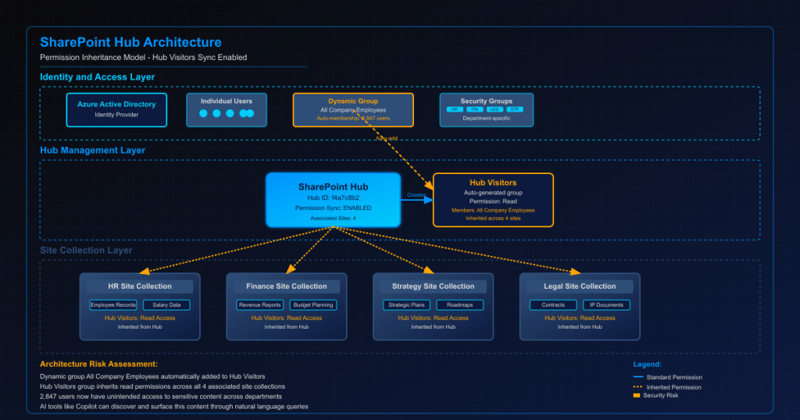
It's crucial to regularly audit the composition of the Hub Visitors group—who is a member, how membership is granted, and which sites are inheriting those permissions. Even a single site with unique or misconfigured permissions can unintentionally expose confidential content, especially when discovery tools like Copilot are in use, making it easier and faster to surface files that were previously “hidden in plain sight.”
Pay special attention to scenarios where dynamic groups (such as “all company employees”) are added to Hub Visitors. Over time, permission creep can accumulate, resulting in read access being granted across multiple SharePoint sites, sometimes without full awareness of administrators. This accumulation is particularly problematic because AI-powered search and summarization tools can reveal the scope of access issues at unprecedented scale and speed, highlighting vulnerabilities that were once much harder to detect.
copy/move surprises and permission bloat
Copy to typically inherits the destination library’s permissions (unique perms usually aren’t carried), while Move to generally inherits the destination (unless the item already had unique permissions), which can lead to messy outcomes. Over years, this creates permission sprawl and unique-permission limits issues.
Copying files using the "Copy to" feature in SharePoint typically means the files inherit the permissions of the destination library, rather than retaining any special or unique permissions they may have had in their original location. This process standardizes access but can inadvertently remove critical controls, especially when files with sensitive content are copied into less restricted spaces. On the other hand, the "Move to" feature generally also causes files to adopt the permissions of the destination, but there are exceptions. If an item has unique permissions set prior to the move, these may persist, introducing unpredictable access scenarios.
Over time, these routine actions—copying and moving files between libraries and sites—can result in what’s known as "permission sprawl." As documents and folders accumulate unique permissions, administrators can quickly lose track of who has access to what. This not only makes governance more challenging but also risks hitting SharePoint’s technical limits for unique permissions per site or library, potentially causing operational headaches.
The situation becomes even more complex when dynamic groups or broad access groups such as “Everyone except external users” are incorporated. Each copy or move action increases the likelihood of permission bloat, where layers of inherited and unique permissions intermix. Such sprawl makes it harder for security teams to conduct thorough permission audits and ensure that sensitive documents remain protected.
Ultimately, without careful oversight and regular review of permission structures, the seemingly simple act of copying or moving content within SharePoint can open unexpected pathways to confidential files. Combined with AI-powered tools like Copilot, which can rapidly surface and summarize mis-scoped documents, these issues can escalate rapidly, making proactive governance and permission hygiene more critical than ever.
Copilot's role in sharepoint file discovery
One of SharePoint’s strengths lies in its robust search capabilities, which have been enhanced by the integration of AI tools like Copilot. Copilot brings a new dimension to file discovery, enabling users to prompt and retrieve files based on keywords, types, and even specific contributors. However, as with any AI-driven tool, there are challenges and limitations to consider.
Searching for revenue files
Copilot can be prompted to look for files related to specific themes, such as revenue. By leveraging keyword-based searches, users can efficiently enumerate files across SharePoint repositories. This streamlined approach is ideal for retrieving relevant data without manually combing through extensive libraries. However, users must ensure their prompts are clear and precise to avoid irrelevant results.
Contributor-specific file searches
Another intriguing functionality of Copilot is its ability to search for files posted by specific individuals. For instance, files attributed to User A can be located. However, caution is necessary; the AI has limitations in interpreting folder names or scopes. For example, when searching for files in the “Armada Folder,” Copilot may misinterpret this as simply “Armada.” To mitigate these issues, users should refine their prompts and clarify their search parameters.
Addressing hallucination risks
While Copilot is a powerful tool, it is not immune to errors. One notable risk is its tendency to hallucinate data for fields or folders where a user does not typically post. For example, if User A seldom contributes to the “Armada” folder, searching within this scope might yield unreliable results. Regular testing and prompt refinement are essential to ensure accuracy and trustworthiness in findings.
Best practices for sharepoint and copilot
To maximize the benefits of SharePoint and Copilot, users and administrators should adhere to certain best practices:
- Understand Permissions Layers: Familiarize yourself with the dual-ACL structure to avoid confusion and ensure proper management of access controls.
- Optimize Search Prompts: Use precise and clear prompts when requesting specific files or keywords via Copilot.
- Test and Refine Queries: Regularly test search results to identify and correct any discrepancies or hallucinations.
- Provide Training: Educate users on navigating SharePoint’s permissions and leveraging Copilot effectively.
about the authors
 Gabriel Conlon